Google Input Tools Nepali Download: Easy Nepali Typing with Pimbal Technology
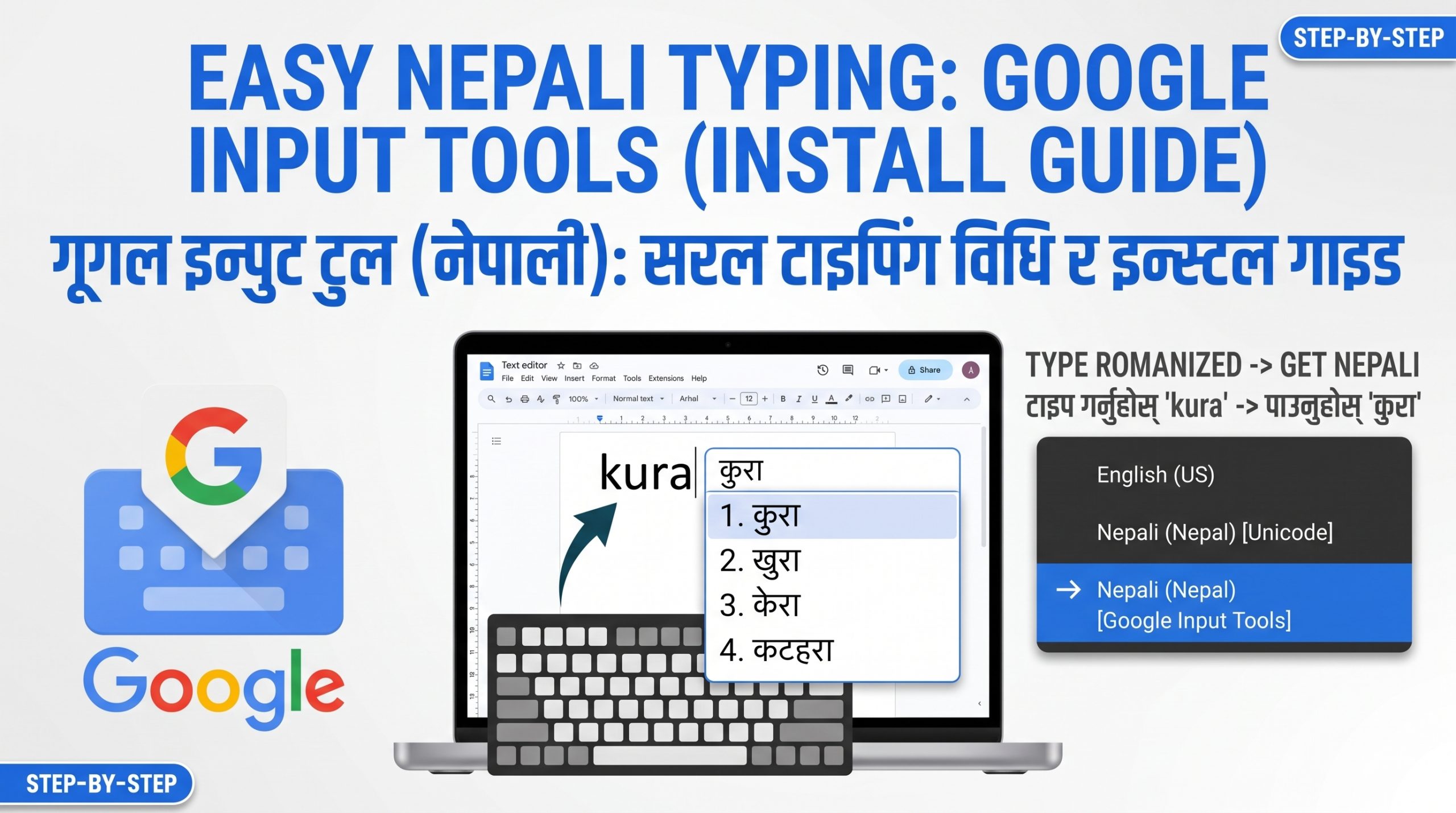
Google Input Tools Nepali download remains one of the most searched solutions for people who want to type Nepali easily on a Windows computer using a standard English keyboard. The tool uses phonetic transliteration: you type words the way they sound in Roman letters (for example, “namaste” or “mero naam”), and the software converts them into proper Nepali Devanagari script (नमस्ते or मेरो नाम). This approach removes the need to memorize complex keyboard layouts and makes Nepali typing accessible to beginners, students, office workers, content creators, and anyone who prefers writing in their native language.
Although Google officially discontinued the standalone Windows desktop version of Input Tools around 2018, archived offline installers continue to circulate widely through trusted Nepali tech sites. These packages still work on many Windows 10 and Windows 11 systems and deliver system-wide typing in Microsoft Word, Notepad, browsers, email clients, and social media platforms.
How Google Input Tools Makes Nepali Typing Easier
Traditional Nepali keyboard layouts require users to learn which English key corresponds to each Devanagari character. That learning curve frustrates many people and slows down everyday writing. Google Input Tools Nepali solves the problem with phonetic input. You simply type the English pronunciation of a Nepali word, and the tool suggests matching Devanagari options in a small popup. Selecting the correct suggestion inserts the Unicode Nepali text instantly.
The system works offline once the language pack is installed, so you can type in Microsoft Word, PowerPoint, Excel, Notepad, Gmail drafts, Facebook comments, or blog editors without an internet connection. Accuracy improves over time because the tool learns from your choices and stores common words. Suggestions appear for multi-word phrases as well, which is especially helpful when writing full sentences or longer documents.
Compared with pure Unicode keyboard layouts or older non-Unicode fonts, the phonetic method feels closer to speaking. Students preparing assignments, journalists drafting articles, government staff preparing official letters, and social-media users posting in Nepali all benefit from the reduced friction. The same underlying technology powers Google’s online transliteration services, so the experience remains consistent across platforms.
Key advantages include zero cost, compact installer size (typically under 6–7 MB for the combined package), broad Windows compatibility from older XP systems up through current Windows 11 releases, and support for both 32-bit and 64-bit machines. Once set up, the tool sits quietly in the system tray language bar and activates only when you switch to Nepali mode.
Click to Download Google Input Tool
Change Nepali and English Typing with Windows + Space
After successful installation, switching between English and Nepali becomes almost instantaneous. The most reliable keyboard shortcut is Windows key + Space. Pressing the combination cycles through all installed input languages and methods. When the language indicator in the taskbar shows “NEP” or “Nepali (Google Input Tools),” every keystroke is processed as phonetic Nepali. Pressing Windows + Space again returns you to English (ENG).
Alternative shortcuts that many users also rely on include Alt + Shift (the classic Windows language toggle) and, in some configurations, Ctrl + Shift. The exact behavior depends on how Windows Language settings are configured. You can customize the order of languages or remove unwanted layouts through Settings > Time & language > Language & region so that only English and Nepali appear in the cycle.
The floating language indicator (often a small “ENG” or “NEP” badge near the clock) also lets you click and choose the desired input method with the mouse. After a few days of practice, most people switch languages without thinking about it. This seamless toggle is one of the reasons the Google Input Tools Nepali download remains popular even years after the official desktop product was retired.
Google Input Tools Nepali Download and Local Installation Steps
Because Google no longer hosts the official Windows offline installer, most people obtain the package from reputable Nepali technology sites that archive the original signed files. A typical download arrives as a ZIP or RAR archive containing two executable files: the core Google Input Tools framework and the separate Nepali language pack.
Recommended general process (always scan files with antivirus software before running):
- Locate a trusted download page that offers the Google Input Tools Nepali offline installer. File sizes around 5–6 MB are common for the combined package.
- Download the archive to a folder you can easily find, such as the Desktop or Downloads folder.
- Extract the contents using Windows File Explorer, 7-Zip, or WinRAR. You should see at least two setup files one for the main Input Tools engine and one specifically labeled for Nepali.
- Run the main Google Input Tools installer first (right-click and choose “Run as administrator” if Windows requests elevated permissions). Follow the on-screen prompts and accept the license agreement.
- After the framework finishes, run the Nepali language pack installer. Again, grant administrator rights if asked.
- Restart the computer or at least sign out and sign back in so Windows fully registers the new input method.
Once installation completes, open any text application and look for the language indicator in the taskbar. Select Nepali (Google Input Tools) and begin typing Roman characters; the Devanagari suggestions should appear. The entire process usually takes less than five minutes on a modern machine.
How to Unzip and Start the Google Input Tools Nepali Installation
Most packages arrive compressed. Right-click the downloaded ZIP or RAR file and choose “Extract All” (Windows built-in) or use a free extractor such as 7-Zip. Extract into a new folder named something clear, for example “Google-Input-Nepali.” Inside you will normally find:
- GoogleInputTools.exe (or similar core installer)
- GoogleInputNepali.exe (language-specific pack)
Double-click the core installer first. Windows may display a SmartScreen or User Account Control warning because the software is older; choose “More info” and then “Run anyway” only if you obtained the file from a source you trust. Complete the setup wizard, which is usually a simple “Next–Next–Finish” sequence. Repeat the process for the Nepali language pack. After both installers finish, the new input method should appear automatically in the language list. If it does not, open Windows Settings, navigate to Language options, and verify that Nepali with the Google Input Tools keyboard is listed.
How to Use Google Input Tools Nepali After Installation
Using the tool is straightforward. Open any application that accepts text input Microsoft Word, Google Docs (in a browser), Notepad, a chat window, or a web form. Switch to Nepali mode with Windows + Space. Type a word phonetically: for example, type “kathmandu” and the suggestion list will offer काठमाडौं. Use the arrow keys or mouse to select the correct option and press Enter or Space to confirm. Continue typing the next word; the tool keeps suggesting based on context.
Common practical tips:
- Press the number keys (1–9) that appear next to suggestions for even faster selection.
- If the exact word is missing, type more characters or try alternative spellings (for example, “namaste” versus “namasthe”).
- For punctuation and numbers, switch temporarily back to English or use the on-screen virtual keyboard that some versions provide.
- The tool works inside almost every Windows application once the input method is active; no special plugins are required for Office or browsers.
After a short practice session most users reach comfortable typing speeds because they no longer hunt for individual characters on a special layout.
Google Input Tools Nepali vs Unicode Typing: Which Is Easier?
Unicode Nepali typing generally refers to either a traditional keyboard layout (Inscript or phonetic) or pure Unicode fonts that display Devanagari correctly across platforms. Learning a full Unicode keyboard layout takes time and muscle memory. Google Input Tools Nepali sits between pure Roman typing and full keyboard mastery: it is phonetic and suggestion-driven, so beginners become productive almost immediately.
Pros of Google Input Tools:
- Extremely low learning curve
- Works offline after installation
- System-wide availability
- Automatic suggestions reduce spelling mistakes
Cons:
- Relies on an older discontinued package for full offline system-wide use
- Occasional suggestion errors for rare or compound words
- Potential compatibility friction on the newest Windows builds
Pure Unicode keyboard layouts offer greater long-term speed for professional typists who type all day, but they require dedicated practice. Many Nepali users therefore keep both options: Google Input Tools for quick everyday writing and a Unicode layout for specialized or high-volume work. The combination covers nearly every real-world need.
Live Preeti to Unicode Converter for Nepali Text
Preeti is a popular non-Unicode font still used in older documents, newspapers, and some government offices. Text typed in Preeti does not display correctly when the font is missing, and it cannot be searched or processed properly in modern systems. Live or online Preeti-to-Unicode converters solve the problem by mapping Preeti characters to their Unicode Devanagari equivalents in real time.
Try Yourself:
Powered by Preeti to Unicode Converter
Several free web tools accept pasted Preeti text and instantly return clean Unicode. The conversion is usually character-by-character or rule-based, so accuracy is high for standard documents. After conversion you can paste the Unicode text into any modern editor and continue editing with Google Input Tools Nepali if further changes are required. Keeping both a Preeti converter and the Google Input Tools package gives users a complete workflow for handling both legacy and new Nepali content.
Troubleshooting Google Input Tools Nepali Download and Installation Issues
Common problems and practical fixes:
- Installer will not run or is blocked by Windows – Right-click the EXE, choose Properties, and check “Unblock” if available. Run as administrator. Temporarily disable real-time antivirus if it falsely flags the older package, then re-enable it after installation.
- Nepali option does not appear in the language bar – Restart the computer. Open Settings > Time & language > Language & region and confirm Nepali is installed. Re-run the language-pack installer if necessary.
- Suggestions do not appear or typing produces English only – Verify that the correct input method (Google Input Tools Nepali) is selected, not a standard Nepali keyboard layout. Click the language indicator and choose the Google version explicitly.
- Font display problems (boxes or strange characters) – Install a modern Unicode Nepali font such as Noto Sans Devanagari or Mangal. Ensure the application is set to use a Unicode-compatible font.
- Slow or incomplete download – Try a different browser, disable ad blockers temporarily, or download during off-peak hours. Prefer smaller ZIP packages when available.
- Works in some programs but not others – Some older or sandboxed applications ignore system input methods. In those cases use the Chrome extension version of Google Input Tools or type in a supported editor and paste.
If the classic offline installer proves unreliable on a particular machine, fall back to the official Google Input Tools Chrome extension (search the Chrome Web Store) for browser-based typing, or add the built-in Windows Nepali language pack and enable a phonetic layout. Both alternatives remain fully supported.
Google Input Tools Nepali Download: Start Easy Nepali Typing Today
Obtaining and installing Google Input Tools Nepali still offers one of the fastest routes to comfortable Nepali typing on a Windows PC. The phonetic approach, combined with the Windows + Space shortcut, removes most of the traditional barriers. Whether you need the tool for schoolwork, professional documents, social media, or personal communication, the steps outlined above download from a trusted source, extract, install the framework then the language pack, and switch languages with a simple key combination get you typing in minutes.
Pair the offline package with a reliable Preeti-to-Unicode converter for legacy files, and keep the Chrome extension as a backup for pure browser work. With these resources in place, writing in Nepali becomes as natural as speaking it. Download the package, follow the installation sequence carefully, practice a few sentences, and you will quickly experience the difference that easy, accurate Nepali input makes every day.
FAQs
What is Google Input Tools Nepali?
It is a phonetic input method that converts Roman (English) keystrokes into Nepali Devanagari script using Google’s transliteration engine. Once installed it works system-wide on Windows.
How can I download Google Input Tools Nepali?
Search for “Google Input Tools Nepali offline installer” on reputable Nepali technology sites that still host the archived package. Prefer ZIP files around 5–6 MB and always scan with antivirus software.
How do I install Google Input Tools Nepali locally?
Extract the archive, run the core Google Input Tools installer first, then the Nepali language pack. Restart or sign out so Windows registers the new input method.
How do I unzip the Nepali typing tool before installation?
Right-click the downloaded ZIP or RAR file and choose Extract All, or use 7-Zip/WinRAR. Place the extracted files in a dedicated folder before running the EXE installers.
How can I switch between Nepali and English with Windows + Space?
After installation, press the Windows key and the Space bar together. The language indicator in the taskbar cycles between English and Nepali (Google Input Tools).
Is Google Input Tools easier than Unicode Nepali typing?
For most beginners and casual users, yes. The phonetic suggestion system requires almost no memorization, whereas full Unicode keyboard layouts need practice.
Can I use Google Input Tools for regular Nepali typing?
Yes. It works in Microsoft Office, Notepad, browsers, email, and most other Windows applications once the input method is selected.
How does Preeti to Unicode conversion work?
Online converters map each Preeti character to its Unicode equivalent. Paste the old Preeti text into the converter and copy the resulting clean Unicode text.
Can Preeti text be converted to Unicode live?
Many web-based tools perform the conversion instantly as you paste or type, allowing real-time checking before you copy the result.
What should I do if Google Input Tools Nepali does not work?
Restart the computer, confirm the correct input method is selected, run the installer as administrator, check Windows language settings, or switch to the Chrome extension / built-in Windows Nepali pack as alternatives.